JShell Tutorial: How to Use the Java REPL (Java 9)
-
Last Updated: October 29, 2026
-
By: javahandson
-
Series

A beginner-friendly JShell tutorial for Java 9. Learn to run Java in the REPL — expressions, variables, methods, /vars, /save and more, with live examples.
This JShell tutorial shows you how to run Java code without creating a class, a main method, or even a file. JShell is the official Java REPL. It arrived in Java 9, and it changed how we try out small pieces of code. You type one line, press Enter, and see the result right away.
Before Java 9, testing a tiny idea felt heavy. You had to make a class, add a main method, compile it, and only then run it. That is a lot of ceremony just to check if “abc”.length() returns 3. JShell removes all of that. You open a shell, type an expression, and Java answers instantly.
In this guide, we start from zero. First, we open JShell. Then we try expressions, variables, and methods. After that, we explore the handy commands like /vars, /list, and /save. By the end, you will feel comfortable using the Java REPL for quick experiments every single day.
| Note REPL stands for Read-Eval-Print Loop. The tool reads your input, evaluates it, prints the result, and loops back for the next line. Python, Ruby, and JavaScript had this for years. Java finally got its own in version 9. |
JShell is an interactive command-line tool. Basically, you type Java code one snippet at a time, and it runs immediately. There is no compile step that you manage yourself. There is no class wrapper to write. The tool handles all of that behind the scenes.
A “snippet” is just a small piece of Java. Specifically, it can be an expression, a statement, a variable, or even a full method. JShell accepts all of these. So you can test logic in small bites instead of building a whole program.
Overall, the best part is speed. You get an answer in under a second. That tight feedback loop makes learning faster and debugging simpler.
| 💡 Interview insight — Why JShell was added Interviewers sometimes ask why Java waited so long for a REPL. The honest answer: Java is a compiled, statically typed language, so a REPL is harder to build than in a scripting language. The JShell project (JEP 222) solved this by compiling each snippet into bytecode in the background and running it on a live JVM. Mentioning JEP 222 shows you know where the feature came from. |
No separate install is required. JShell ships inside the JDK from version 9 onward. If you have JDK 9 or any newer version, you already have it. The tool lives in the bin folder, right next to java and javac.
Open a terminal and run this command. It confirms which JDK you have.
java -version
You should see version 9 or higher. However, if you see version 8 or lower, JShell will not be there. In that case, download a modern JDK from Adoptium or Oracle, then try again.
| Note JShell was introduced in Java 9 and has shipped in every release since. So Java 11, 17, 21, and newer all include it. The core commands in this tutorial work the same across all of them. |
Starting the Java REPL takes one word. Open your terminal and type the command below.
jshell
You will see a welcome banner and a prompt. Typically, it looks like this.
|  Welcome to JShell -- Version 9
|  For an introduction type: /help intro

jshell>
That jshell> prompt is where you type your code. Now the tool waits for your first snippet. Whenever you want a quieter start without the banner, add the -q flag.
jshell -q
To leave the shell, type /exit and press Enter. Then the tool says goodbye and returns you to the terminal.
jshell> /exit
|  Goodbye
First, let us start with simple math. Type an expression and press Enter. JShell evaluates it and shows the answer.
jshell> 2 + 2
$1 ==> 4

jshell> "Hello, " + "JShell"
$2 ==> "Hello, JShell"
Notice the ==> arrow. That arrow means “this is the result”. Also notice the $1 and $2 names. JShell creates these automatically for any expression that has no name. They are called scratch variables.
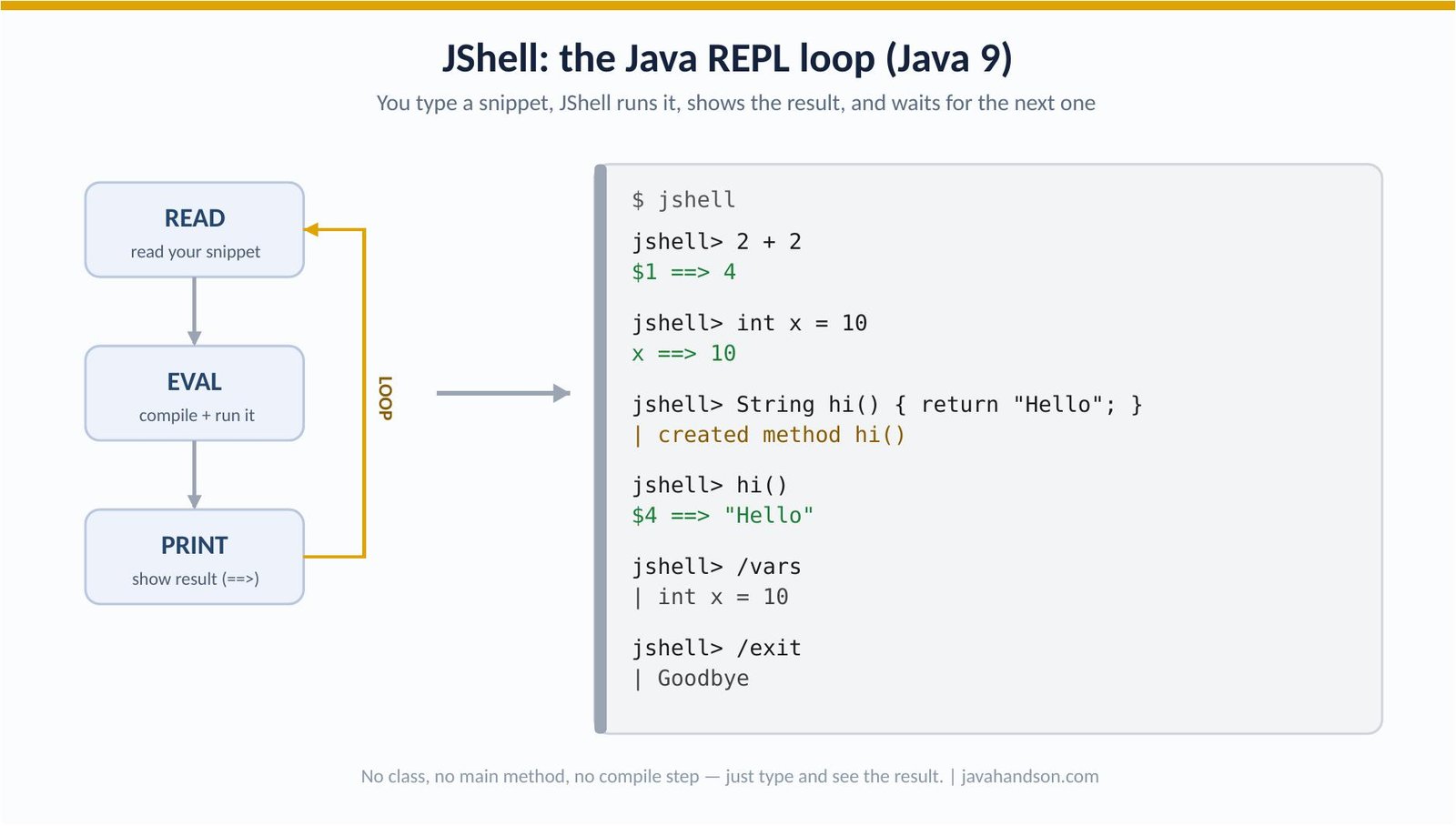
Those $1-style names are real variables. In fact, you can use them again in your next line. Here we reuse $1 to build a new calculation.
jshell> 10 * 10
$1 ==> 100

jshell> $1 + 5
$2 ==> 105
This is handy for quick, chained math. The last result is always one keystroke away. However, for anything you want to keep, a proper name is better. We cover named variables next.
You declare variables exactly like normal Java. Simply give a type, a name, and a value. JShell stores it and confirms the value back to you.
jshell> int count = 5
count ==> 5

jshell> String name = "Suraj"
name ==> "Suraj"

jshell> double price = 99.5
price ==> 99.5
Each variable now lives in your session. Therefore, you can read it, change it, or use it inside later snippets. Try multiplying count by price, for example.
After a while, you may forget what you declared. Conveniently, the /vars command lists every variable along with its current value. This saves you from scrolling up.
jshell> /vars
|    int count = 5
|    String name = "Suraj"
|    double price = 99.5
Here is a surprise. In a normal Java file, you cannot declare score as an int and later redeclare it as a String. The compiler complains. But JShell allows it, because each snippet replaces the old one.
jshell> int score = 10
score ==> 10

jshell> String score = "A grade"
score ==> "A grade"
The second line simply replaces the first. Essentially, JShell treats your session as an evolving draft, not a fixed file. So you are free to change your mind as you experiment.
| 💡 Interview insight — Redeclaration is a REPL feature, not Java syntax A common trap in interviews: someone claims “Java lets you change a variable’s type at runtime.” That is wrong. Regular Java still does not allow this. The behaviour is specific to JShell, which rewrites the declaration for you. Keep this distinction clear — it shows you understand the tool is a wrapper, not a change to the language itself. |
JShell is not limited to one-liners. Additionally, you can define full methods too. Type the method, and the tool confirms it was created.
int square(int n) {
    return n * n;
}
JShell responds with a short confirmation.
| created method square(int)
Now call it like any method. Simply pass an argument and watch the result come back through the ==> arrow.
jshell> square(6)
$2 ==> 36
Just like /vars, there is a command for methods. Similarly, the /methods command shows every method you have defined, with its signature.
jshell> /methods
|    int square(int)
You can redefine a method whenever you like. Indeed, JShell updates it in place and tells you it was modified. No restart needed.
jshell> String greet() { return "Hi"; }
|  created method greet()

jshell> greet()
$2 ==> "Hi"

jshell> String greet() { return "Hello there"; }
|  modified method greet()

jshell> greet()
$4 ==> "Hello there"This one feels almost magical. You can define a method that calls other methods which do not exist yet. JShell accepts it and simply warns you. Once you define the missing methods, it works.
jshell> int total() { return subtotal() + tax(); }
|  created method total(), however, it cannot be invoked
|  until method subtotal(), and method tax() are declared
So you can sketch your logic top-down. Define the big method first, then fill in the helpers. That matches how many of us actually think while coding.
Methods are useful, yet sometimes you want a small class to hold data. Naturally, JShell handles classes too. Just type the class the way you normally would. The tool confirms that it was created and keeps it in your session.
class Book { String title; int pages; }JShell replies with a short note, exactly like it does for methods.
| created class Book
Now you can create objects from that class and use them. For example, make a Book, set a field, and read it back.
Book b = new Book();
b.title = "Clean Code";
b.pages = 464;
Classes and interfaces are called “types”. So there is a dedicated command for them. The /types command lists every class and interface you have declared in the session.
jshell> /types
|    class Book
Therefore you now have three listing commands that work the same way. Use /vars for variables, /methods for methods, and /types for classes. Together they give you a full picture of your session at any moment.
| Note You do not need public, private, or a separate file for these classes. Inside JShell, keep them small and simple. The goal is quick testing, not production design. For real projects, you still write classes in proper .java files as usual. |
JShell loads several common packages at startup. As a result, you can use List, Map, Arrays, and many stream classes without typing a single import. This keeps quick experiments short.
Run /imports to see the full default list for your session.
jshell> /imports
|    import java.io.*
|    import java.math.*
|    import java.net.*
|    import java.nio.file.*
|    import java.util.*
|    import java.util.concurrent.*
|    import java.util.function.*
|    import java.util.prefs.*
|    import java.util.regex.*
|    import java.util.stream.*
Because of these imports, this works straight away. No import line needed.
List<Integer> nums = List.of(1, 2, 3, 4, 5);
int total = nums.stream().mapToInt(n -> n).sum();
JShell prints the values back for each line.
nums ==> [1, 2, 3, 4, 5]
total ==> 15
| Note List.of() is itself a Java 9 feature, covered in a separate article in this series. Here we only use it as a quick example. The point is that JShell’s default imports let the line run without extra setup. |
Need a package that is not on the list? Just type the import yourself. JShell remembers it for the rest of the session.
import java.time.LocalDate;
Commands start with a forward slash. Importantly, they control the shell itself, not your Java code. You have already met a few. Here are the ones worth memorising.
The /list command shows your snippets with their IDs. This is useful when you want to review or re-run something.
jshell> /list
   1 : int a = 1;
   2 : int b = 2;
   3 : int c = a + b;
Typing long methods at the prompt gets awkward. The /edit command opens a snippet in a small pop-up editor. You fix it there, save, and JShell picks up the change. Run /edit followed by the snippet name or ID.
/edit square
Made a mistake you want gone? The /drop command removes a variable or method from the session. Pass its name or ID.
/drop count
Sometimes your session gets messy. The /reset command wipes everything and gives you a clean slate. All variables and methods disappear.
/reset
Want to see everything you typed, including the commands? The /history command prints your full input history for the session. Meanwhile, /reload does something cleverer. It restarts the session and replays your snippets in order, so your state comes back exactly as before.
jshell> /reload
|  Restarting and restoring state.
-: int a = 1;
-: int b = 2;
So /reload is perfect after you fix an early mistake. Instead of retyping everything, let JShell replay it for you. The small dash marks show which snippets were restored.
By default, JShell prints a friendly message for each snippet. Sometimes you want less noise. Other times, you want more detail. The /set feedback command switches between four built-in modes.
Try verbose mode once to see the difference. Afterwards, switch back to normal whenever the extra text feels like too much.
/set feedback verbose
| 💡 Interview insight — Tab completion saves real time In a demo or interview, press the Tab key after typing part of a name. JShell auto-completes method names, variable names, and even shows the available methods on an object. For example, type a String variable, a dot, then Tab to list every String method. This single habit makes you look fluent and speeds up exploration a lot. |
A JShell session is temporary by default. In other words, close the window and your snippets are gone. Luckily, two commands let you keep your work.
The /save command writes your current snippets into a plain text file. Give it a file path, and JShell stores every line there.
/save mywork.jsh
The saved file is simple Java source, one snippet per line. Basically, here is what a small session looks like on disk.
int a = 5;
int b = 7;
int sum = a + b;
Next time, load that file with /open. JShell replays every line, so your variables and methods return. This is great for saving a setup you reuse often.
/open mywork.jsh
After loading, the variables are live again. Ask for one and JShell shows its value.
jshell> sum
sum ==> 12
| Note The .jsh extension is just a convention for JShell script files. You can also run a script at startup with: jshell mywork.jsh — handy for demos where you want a ready-made setup. |
Mistakes are part of learning. Thankfully, JShell shows errors clearly and lets you keep going. The session does not crash. You simply fix the line and move on.
Try assigning a String to an int. JShell points right at the problem.
jshell> int y = "hello"
|  Error:
|  incompatible types: java.lang.String cannot be converted to int
|  int y = "hello";
|          ^-----^
The little arrows underline the exact spot. Clearly, that visual hint makes the fix obvious. After the error, your other variables and methods are still intact.
If you start a method and press Enter before finishing, JShell does not panic. The prompt changes to …> to show it is waiting for more. Keep typing until the snippet is complete.
jshell> int square(int n) {
   ...>     return n * n;
   ...> }
| created method square(int)Let us tie it all together. Imagine you want to test a small discount calculation. You would do it like this, step by step, all inside the Java REPL.
double price = 1200.0;
double discount = 0.15;
double finalPrice = price - (price * discount);
JShell confirms each line as you type it.
price ==> 1200.0
discount ==> 0.15
finalPrice ==> 1020.0
Now wrap it in a reusable method, test a few inputs, and save it for later.
double applyDiscount(double price, double percent) {
    return price - (price * percent);
}
Call it with different numbers to check your logic quickly.
jshell> applyDiscount(2000, 0.10)
$7 ==> 1800.0

jshell> applyDiscount(500, 0.25)
$8 ==> 375.0
Happy with it? Save the session with /save discount.jsh and reuse it tomorrow. That is the whole loop: try, refine, keep. No project, no build file, no fuss.
Here is where JShell truly shines in daily work. Whenever you meet an unfamiliar class, you can poke at it live. No need to read pages of docs first. Instead, try a method, see the result, and build your understanding one line at a time.
Suppose you want to understand how LocalDate works. First, import it. Then create a date and call a few methods to see what comes back.
import java.time.LocalDate;
LocalDate today = LocalDate.now();
today.getDayOfWeek();
today.plusDays(10);
Each line gives you an instant answer through the ==> arrow. Consequently, you learn the API by touching it, not by guessing. Moreover, if a method name slips your mind, Tab completion lists the options right there.
Furthermore, this explore-as-you-go style works for any class. String, ArrayList, Math, Stream — pick one and play. Because the feedback is immediate, the lessons stick far better than reading alone.
| 💡 Interview insight — Treat JShell as a documentation companion A smart workflow many senior developers use: keep a JShell window open next to the code editor. When a method’s behaviour is unclear, test it in JShell in two seconds instead of writing a throwaway test class. This is worth mentioning if an interviewer asks how you learn new libraries quickly — it signals a practical, hands-on approach. |
JShell is powerful, but it is not for everything. Still, knowing the right moments to reach for it keeps your workflow clean. So let us be clear about both sides.
In short, think of JShell as a sketchpad. You draft ideas there, then move the good ones into a real project. Both tools have their place, and together they make you faster.
Tab completion is the feature that makes JShell feel fast. Simply type part of a name, press the Tab key, and JShell finishes it for you. Better still, it can show you what is available on an object. Beginners especially love this, because it turns the shell into a live cheat sheet.
Say you have a String and you forget its methods. Type the variable, a dot, and press Tab. JShell lists every method you can call.
jshell> String s = "hello"
s ==> "hello"

jshell> s.          <-- press the Tab key here
charAt(             chars()             codePointAt(
compareTo(          concat(             contains(
endsWith(           equals(             ...and many more
So instead of memorising the whole API, you discover it as you go. Press Tab after an open bracket, and JShell even hints at the expected arguments. This single habit speeds up learning more than any other trick in this JShell tutorial.
To really feel the difference, compare the two approaches. Suppose you only want to check that 7 divided by 2 gives 3 in integer math. Here is the old way, before Java 9.
public class Test {
    public static void main(String[] args) {
        System.out.println(7 / 2);
    }
}
Then you save it as Test.java, compile it with javac, and run it with java Test. That is three files-and-commands worth of effort for one tiny check. Now here is the same thing in JShell.
jshell> 7 / 2
$1 ==> 3
One line. One answer. Clearly, no file, no class, no compile command are needed. That gap is exactly why JShell became so popular for learning and quick testing. Of course, JShell does not replace real projects. Instead, it sits beside them as a fast scratchpad.
| 💡 Interview insight — JShell on the module path A deeper flag worth knowing: jshell –module-path <path> –add-modules <name> lets you experiment with modular code from the Java Platform Module System. You will not need this for everyday snippets, but it is useful when you are learning modules. The module system is a big Java 9 topic on its own — see the linked module articles in this series. |
A: JShell is the official Java REPL, introduced in Java 9. It is an interactive command-line tool where you type Java code one snippet at a time and see the result right away, without writing a class, a main method, or a file.
A: Open a terminal and type jshell, then press Enter. You will see a welcome banner and a jshell> prompt. Add the -q flag (jshell -q) to start without the banner. Type /exit to leave.
A: No. JShell ships inside the JDK from version 9 onward. If you have JDK 9 or any newer version (11, 17, 21, and later), it is already there in the bin folder next to java and javac.
A: The ==> arrow shows the result of your snippet. For an expression with no name, JShell also creates a scratch variable like $1 or $2 that you can reuse in the next line.
A: Yes. Use /save mywork.jsh to write your snippets to a file, and /open mywork.jsh to replay them in a new session. This is handy for keeping a setup you reuse often.
A: No. Beginners use it to learn syntax with instant feedback, but experienced developers use it too — mostly to test what a method returns or to explore a new library quickly, without creating a throwaway project.
JShell turns Java into a playground. Basically, you skip the boilerplate and get straight to the idea. Type an expression, see the result, tweak a method, and save your work — all in seconds. For beginners, it is the fastest way to learn syntax. For pros, it is the quickest way to check an API.
The commands are few and easy to remember. Specifically, start with /vars, /list, /save, and /open, and you already cover most daily needs. So open a terminal, type jshell, and start experimenting. The best way to learn the Java REPL is to play with it right now.