Java 9 “module not found” Error: How to Fix It and JPMS Migration Problems
-
Last Updated: November 2, 2026
-
By: javahandson
-
Series

Getting a module not found error in Java 9? Learn to read every JPMS error message and apply the one exact fix for each — beginner-friendly.
You upgraded a project to Java 9, hit compile, and the build stopped with a message like Module not found. If you are staring at a module not found error in Java 9 right now, take a breath, because almost every one of these errors has a small, boring fix. These messages look scary. In reality they follow a few fixed patterns, and once you learn to read them, you fix them in minutes.
This guide walks through each error you will actually meet during a real migration. We decode the exact message, explain why Java is unhappy, and give you the one command or one line that makes it go away. No theory dumps. Just the error, the cause, and the fix.
Before Java 9, Java had one big bucket called the classpath. You threw all your JARs into it, and the runtime hoped for the best. Java 9 introduced the module system, often called JPMS. It adds a second bucket called the module path, and it adds strict rules about who can see whom.
So the errors are really just the module system enforcing its rules. A class was on the classpath before, so it worked. Now something asks for it as a module, the rule check runs, and the check fails. That is the whole story behind most of these messages.
You do not need to fully modularise your app to hit these errors. Even a plain classpath project can trip over the removed Java EE modules, which we cover below. For a deeper walk through the module system itself, see the companion guide linked at the end.
Every fix starts with one question. Did the error happen at compile time or at run time? The tool in the message tells you.
Compile-time errors are usually about module-info.java. Run-time errors are usually about the module path you pass to the java command. Keep this split in mind. It saves you from fixing the wrong file.
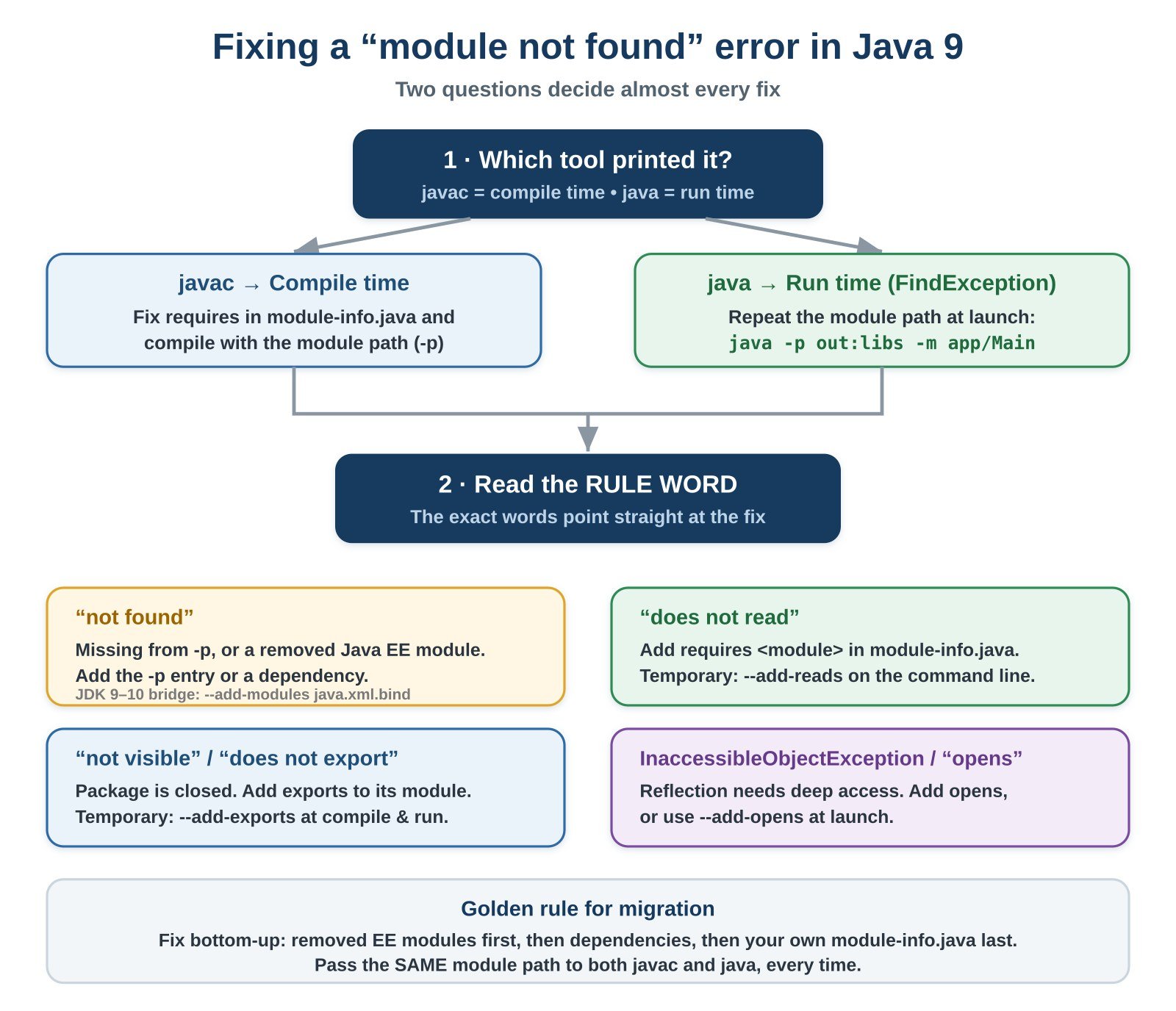
One more check comes before all the others. Confirm which JDK you actually run, because the same error has different fixes on different versions. A build server and your laptop can quietly run different JDKs.
Always confirm your JDK first
java -version
javac -version
The EE module errors below behave one way on Java 9 and 10, and another way on Java 11 and later. So knowing your version is not a formality. It decides which fix is even possible.
Module errors look long, but they pack a lot of help inside them. Learn the shape once, and every future message gets easier. Most of them name three things.
Take the words not visible as an example. They tell you the module was located, so it is not a path problem. Instead the package is closed, which points at exports or requires. Now compare that with not found, which points at a missing module path entry. Same scary tone, very different fix.
So read slowly and underline the rule word. The rule word is your map. Once you match the rule word to the right flag or line, the fix almost writes itself.
When you compile a modular project, javac reads your module-info.java. If you declare a dependency it cannot locate, you get a short, blunt message.
Compile-time error from javac
src/module-info.java:2: error: module not found: com.acme.utils
    requires com.acme.utils;
             ^
1 errorYour module says it requires com.acme.utils. But javac looked on the module path and found nothing with that name. Three things usually cause this.
First, make sure you compile with the module path, not the classpath. The flag is –module-path, or -p for short. Point it at the folder holding your dependency modules.
Compile with the module path
javac -p libs -d out \
      src/module-info.java src/com/acme/app/Main.java
Next, confirm the real module name. Do not guess it. Ask the JAR directly with one command.
Ask a JAR for its real module name
java --describe-module --module-path libs \
     --module com.acme.utils

# Or describe a single JAR file:
jar --describe-module --file libs/acme-utils.jar
The output prints the exact module name on the first line. Copy that name into your requires line, character for character. Most of these errors are nothing more than a name mismatch.
This is the error people search for most. The code compiled fine. Then you run it, and the JVM refuses to start.
Run-time FindException at startup
Error occurred during initialization of boot layer
java.lang.module.FindException: Module com.acme.utils not found,
    required by com.acme.app
Read the message literally. The module com.acme.app needs com.acme.utils. The runtime looked on the module path and did not find it. At compile time your module path had the dependency. At run time you forgot to include it.
Compiling and running are two separate steps. Each step needs its own module path. So repeat the -p flag when you launch the app, and point it at every folder with needed modules.
Run with a complete module path
java -p out:libs -m com.acme.app/com.acme.app.Main
Here out holds your own compiled module, and libs holds its dependencies. On Windows, swap the colon for a semicolon. When the path lists every required module, the FindException disappears.
| 💡 Interview insight A common interview question is: why does code compile but fail to start with FindException? The answer shows you understand JPMS. Compilation and launch use independent module paths. A module present during javac is not automatically present during java. You must supply it again at run time. |
Here is the error most teams actually hit. You run an old app on a new JDK and see this.
The infamous JAXB / Java EE module error
java.lang.module.FindException: Module java.xml.bind not found
You never added a module named java.xml.bind. So why is it missing? Because it used to ship inside the JDK, and now it does not. These were the Java EE and CORBA modules, such as JAXB, JAX-WS, and the old CORBA stack.
JEP 320 planned their removal. In Java 9 and 10 they still exist, but the JDK no longer loads them by default for classpath apps. In Java 11 they were deleted from the JDK entirely. The fix depends on which JDK you run.
It helps to know the exact names, because the error only shows one at a time. Here are the common removed modules and what you add back on Java 11 and later.
Fix them one by one as each error appears. The build fails, names the missing module, and you add the matching artifact. Then the next one shows up, and you repeat. It feels slow, but it ends quickly because the list is short.
The module is still inside the JDK here. It is only hidden from classpath code. So you ask the runtime to add it back with –add-modules.
Re-enable a bundled EE module on Java 9 / 10
# One module:
java --add-modules java.xml.bind -jar myapp.jar

# Several at once:
java --add-modules java.xml.bind,java.xml.ws,java.activation \
     -jar myapp.jar
This is a quick bridge, not a long-term answer. The module is gone in Java 11, so the flag stops working there. Treat it as breathing room while you plan the real fix.
From Java 11 onward these APIs live outside the JDK. So you bring them in like any other library. Add the matching artifact to Maven or Gradle, and the API returns.
Replace the removed JAXB module with a dependency
<!-- Maven: JAXB runtime for Java 11+ -->
<dependency>
    <groupId>org.glassfish.jaxb</groupId>
    <artifactId>jaxb-runtime</artifactId>
    <version>2.3.9</version>
</dependency>
The same idea applies to JAX-WS and the other removed pieces. Each has a standalone artifact now. Add the dependency, drop the –add-modules flag, and your code compiles and runs on modern Java.
| 💡 Interview insight Expect the question: what happened to JAXB in Java 11? Strong answer: the Java EE modules were deprecated in Java 9 under JEP 320 and removed in Java 11. On Java 9 and 10 you re-enable them with –add-modules. On Java 11 and up you add a standalone dependency like jaxb-runtime, because those APIs are no longer part of the JDK. |
Sometimes the module is present, yet the compiler still complains. The error talks about reading, not finding.
A read-edge error at compile time
error: package com.acme.utils is not visible
  (package com.acme.utils is declared in module com.acme.utils,
   but module com.acme.app does not read it)
Reading is the module system word for allowed to use. Your app module can see the other module, but you never declared the dependency. So add it to your module declaration.
Declare the dependency in module-info.java
module com.acme.app {
    requires com.acme.utils;   // this line fixes the read error
}
For a quick test without touching source, you can force a read edge on the command line with –add-reads. Still, the clean fix is the requires line. The command flag is best kept for temporary checks.
This one confuses beginners the most. Two JARs both contain the same package, and the module system forbids that.
A split package compile error
error: module com.acme.app reads package javax.annotation
   from both jsr305 and java.annotation
A package may belong to only one module. When two modules ship the same package, the rule breaks. This happens a lot with older libraries that copied JDK packages. To find split packages before they bite you, run jdeps, which has its own guide linked at the end.
You have two practical fixes. Pick the one that matches your situation.
Patch a split package as a temporary bridge
java --patch-module java.annotation=jsr305.jar \
     -p mods -m com.acme.app/com.acme.app.Main
Use –patch-module only to unblock yourself. A clean dependency tree is the real goal. Split packages are a signal that two libraries overlap, so one of them should go.
Mid-migration, part of your app is modular and part still sits on the classpath. Then you see a message about the unnamed module.
Named module cannot read classpath code
error: package com.legacy.tools is not visible
  (package com.legacy.tools is declared in the unnamed module,
   but module com.acme.app does not read it)
Everything on the plain classpath lives in one place called the unnamed module. A named module is not allowed to read the unnamed module. This is a deliberate rule, not a bug. It stops modular code from depending on an unlabeled pile of JARs.
The clean fix is to turn that classpath JAR into a module the compiler can name. Put the JAR on the module path, and Java treats it as an automatic module. Then you can require it by name. Automatic modules have their own guide linked below, so here we only cover the fix.
Promote a plain JAR to an automatic module
# Move legacy-tools.jar onto the module path (folder: mods)
# Its module name is derived from the JAR file name.

module com.acme.app {
    requires legacy.tools;   // automatic module name from the JAR
}Some code reaches into packages that a module keeps private. The module exists and is readable, yet the package is closed off.
Access to a non-exported package
error: package sun.misc is not visible
  (package sun.misc is declared in module jdk.unsupported,
   which does not export it to module com.acme.app)
A module shares a package only if it exports that package. If it does not, outside code cannot use it, even with a correct requires. Older libraries often poke at internal JDK packages that are now hidden.
The right answer is to stop using the internal API and move to a supported one. When you truly cannot, open the door with –add-exports as a stopgap.
Force an export as a temporary measure
javac --add-exports jdk.unsupported/sun.misc=com.acme.app \
      -p mods -d out src/...

# Pass the same flag to java when you run the app.Frameworks that use reflection, like older Jackson or Hibernate, may fail at run time with a long message. The keyword is opens.
A reflective access failure
java.lang.reflect.InaccessibleObjectException: Unable to make
   field private int com.acme.model.User.id accessible:
   module com.acme.app does not "opens com.acme.model" to
   module com.fasterxml.jackson.databind
Exports allows normal compile-time use. Reflection at run time needs more, and that extra permission is opens. The framework wants deep access to your fields, and your module never granted it.
In your own module, add an opens line for the package the framework reflects on. For a package you cannot edit, use the –add-opens flag at launch.
Grant reflective access two ways
// Option A: in your module-info.java
module com.acme.app {
    opens com.acme.model;   // allow reflection on this package
}

// Option B: at launch, for code you cannot change
// java --add-opens java.base/java.lang=ALL-UNNAMED -jar app.jarHere is an error that surprises people late in a migration. You added the right module, but you added it twice. The runtime refuses to choose between them.
Two copies of the same module
Error occurred during initialization of boot layer
java.lang.module.FindException: Two versions of module com.acme.utils
   found in mods (acme-utils-1.0.jar and acme-utils-1.1.jar)
A module name must be unique on the module path. When two JARs resolve to the same name, the system cannot pick one. This often happens after a version bump leaves the old JAR behind in the same folder.
The fix is simple once you see it. Clean the folder, rebuild, and keep only one version of each module. A fresh build output directory removes most of these ghosts for good.
Most teams do not type javac by hand. They run mvn or gradle, and the same errors appear wrapped in build output. The words are identical, just buried a little deeper.
A module not found during a Maven build usually surfaces from the compiler plugin. The log shows the familiar module not found line inside a failed compile goal.
Typical Maven failure line
[ERROR] .../module-info.java:[2,14] module not found: com.acme.utils
[ERROR] Failed to execute goal
        org.apache.maven.plugins:maven-compiler-plugin ...
The cause is the same as before. Maven places most dependencies on the classpath, not the module path. When your module-info requires a dependency, the compiler plugin must know to treat it as a module. Modern plugin versions handle this automatically, so an upgrade of the compiler plugin often fixes it outright.
Gradle shows the run-time FindException when you launch a modular app without the module path. The fix is to enable modularity so Gradle builds the right path for you.
Theory sticks better with a small run. Imagine two modules. The app module uses a greeting from a utils module.
The two module declarations
// utils/module-info.java
module com.acme.utils {
    exports com.acme.utils;
}

// app/module-info.java
module com.acme.app {
    // requires line is missing on purpose
}
You compile the app, and javac stops cold. The message says the utils package is not visible, because the app does not read the utils module. Notice the rule word, which is read, not found. So this is a requires problem, not a path problem.
The fix: one line
module com.acme.app {
    requires com.acme.utils;
}
Add that single line, compile again, and the error is gone. Then you run the app and point -p at both module folders. One missing line caused the whole failure, and one line cured it. Nearly every JPMS error you meet is this shape, just dressed up in longer words.
Not every module message stops your build. Some are only warnings, and that is a trap. A warning on Java 9 can become a hard failure on a later version.
The best known case is illegal reflective access. On Java 9 through 16, a framework reaching into closed JDK internals printed a loud warning but still ran.
The reflective access warning on Java 9 to 16
WARNING: An illegal reflective access operation has occurred
WARNING: Illegal reflective access by com.example.Lib ...
WARNING: All illegal access operations will be denied in a
         future release
That last line was a promise, and Java 17 kept it. From Java 17 the same access throws an error instead of warning. So treat these warnings as homework, not noise. Fix them with proper opens lines or an –add-opens flag before you jump to a newer long-term release.
| 💡 Interview insight Interviewers like to ask what changed about reflective access across versions. Short answer: Java 9 allowed deep reflection with a warning, controlled by –illegal-access. Java 16 flipped the default to deny. Java 17 removed the permissive mode, so illegal access now fails hard. The clean fix is an opens directive or a scoped –add-opens. |
When many errors appear at once, do not panic and fix randomly. Work bottom up and the list shrinks fast. Follow this order.
Bottom-up order matters because a module can only require things below it. Fix the leaves, then the branches, then the trunk. Top-down fixing just creates new errors above the ones you solved.
A: The module system cannot locate a module your code asked for. Either the module is not on the module path (-p), the name has a typo, or it is a removed Java EE module like java.xml.bind. Read the tool name first: javac means a compile-time problem, while java with FindException means a run-time one.
A: That module was part of Java EE and is no longer loaded by default. On Java 9 and 10, re-enable it with –add-modules java.xml.bind. On Java 11 and later it is removed from the JDK, so add the jaxb-runtime dependency to Maven or Gradle instead.
A: Compiling and running use separate module paths. A module present during javac is not automatically present during java. Pass the same -p path to the java command, listing every folder that holds a required module.
A: –add-modules pulls an extra module into the run. –add-reads lets one module use another without a requires line. –add-exports opens a package for normal compile-time use. –add-opens allows deep reflective access at run time. Each matches a different rule word in the error message.
A: No. Many teams hit these errors on plain classpath apps, mostly from the removed EE modules. You can fix those with a dependency or a flag and never write a single module-info.java.
A: No. The module was deleted from the JDK in Java 11, so the flag fails there. Treat it as a short bridge on Java 9 and 10, then switch to a standalone dependency before you move to a newer release.
A module not found error in Java 9 feels alarming, yet it is rarely hard. The module system is simply checking its rules, and each message points at one broken rule. Read the tool name, decide compile time or run time, then apply the matching fix.
Keep the big three in your head. Missing EE modules need a dependency or –add-modules. A missing module path at run time needs the -p flag repeated. Access errors need requires, exports, or opens. With those patterns, migration becomes routine rather than frightening.